导航混音
Remix's layout consists of the following components: the Top Bar, Icon Panel, Side Panel, Main Panel, Terminal, and the Status Bar.

Top Bar - interface for workspace selection, GitHub authentication and associated tools, themes, and the settings panel.
Icon Panel - indicates which plugins have been activated and which plugin is currently in the left or Right Side Panel. Click an icon to select that plugin. Go to the Plugin Manager to activate other plugins.
Left Side Panel - interface for the File Explorer, Solidity Compiler, Git, Deploy & Run, and many other plugins. Visit the Plugin Manager for a full list of plugins.
Right Side Panel - interface for the RemixAI Assistant.
Main Panel - contains tabs for editing files, Main Panel plugins (plugins that require more space than Side Panel plugins), and the Home Tab.
Terminal - a panel for viewing transaction receipts, various logs, and for executing JavaScript scripts.
Default tools
When the Remix IDE is loaded for the first time - the Icon Panel shows these icons by default.

When you load more plugins, that icons automatically appear in the icon panel. To load more plugins go to the Plugin Manager and select a plugin from the list of available plugins.
主页

The Home Tab is located in the Main Panel. It can be closed, just like any of the Main Panel tabs. You can also access it (even if closed) by clicking the Remix logo at the top of the icon panel.
主页标签包含资源链接、公告、教程、特色插件、将文件加载到 Remix 的方法以及将 Remix 连接到本地文件系统的快捷方式。
Toggling components
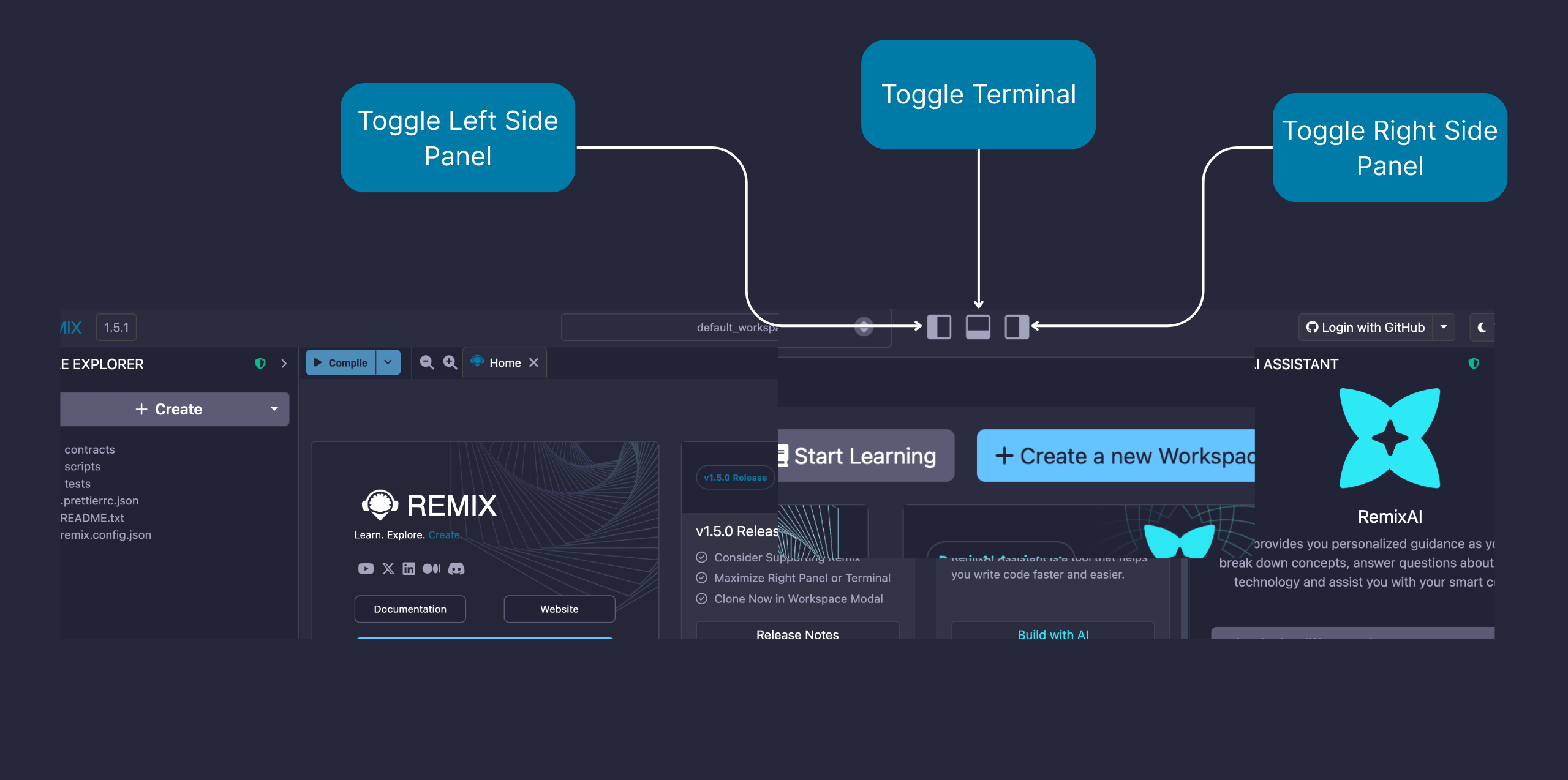
By default, Remix opens with the Left and Right Side Panels active. You can toggle the states of these components using the buttons on the Top Bar as shown in the image below.
Plugin manager
在Remix中,您只需加载所需的功能 - 而插件管理器是您管理哪些插件启用或禁用的地方。
The Plugin Manager is also the place you go when you are creating your own plugin and you want to load your local plugin into Remix. In that case, you'd click on the "Connect to a Local Plugin" link at the top of the Plugin Manager panel.
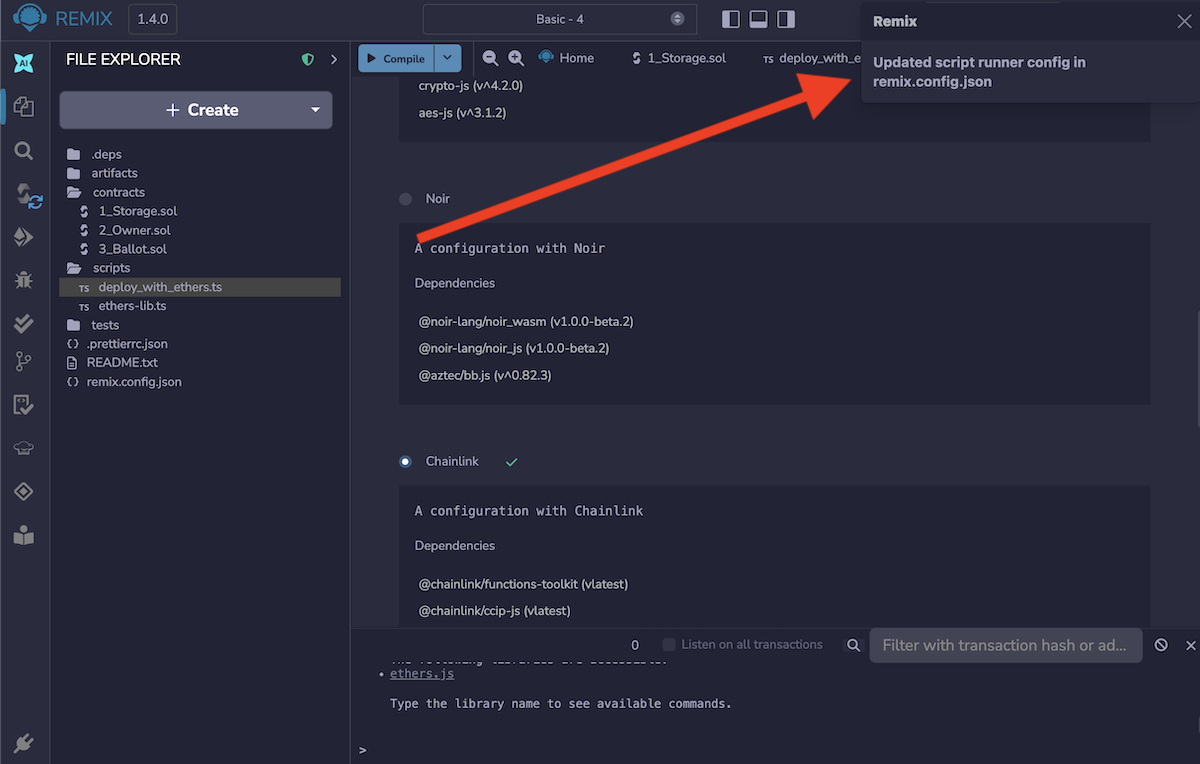
Notifications
Notifications on Remix are triggered when you perform certain actions like loading workspace dependencies. When triggered, they appear on upper right of the screen.