Remixd: Access your Local Filesystem
Предупреждение
Remixd is deprecated. For workflows that require access to your local filesystem, use Remix Desktop instead. Remix Desktop has native filesystem access without the need to run a separate daemon process.
Download Remix Desktop from the releases page.

To give the Remix IDE (the web app) access to a folder on your computer, you need to use Remixd - the plugin along with Remixd - the cli/npm module.
The Remixd plugin can be activated from the plugin manager or in the File Explorer - see the image below. The connect to localhost - will activate the Remixd plugin.
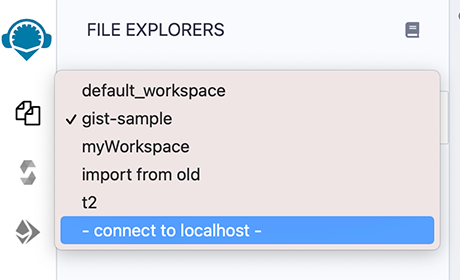
Once you click connect to localhost or activate Remixd from the Plugin Manager, a modal will come up:
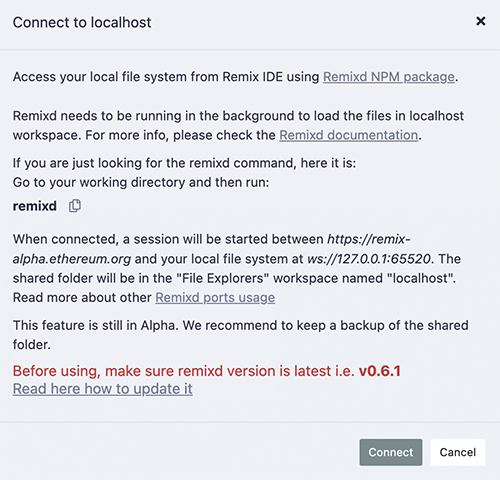
The Remixd plugin is a Websocket plugin and it has no UI other than this modal dialog box - so you won’t see a Remixd icon in the icon panel.
Before you hit Connect, you need to install the Remixd NPM module and run the Remixd command.
The code of remixd is
here .
Remixd installation
remixd is an npm module and can be globally installed using the following command:
npm install -g @remix-project/remixd
Or just install it in the directory of your choice by removing the -g flag:
npm install @remix-project/remixd
NOTE: When the Remixd npm module is installed, it also installs Slither, solc-select and sets solc to latest version i.e. 0.8.15 currently.
ALSO NOTE: Python3.6+ (pip3) needs to already be installed on the System. (This packaging of Slither with the Remixd module is supported since Remixd v0.6.3). In case of any discrepancy, Slither can also be installed along with other dependencies using command remixd -i slither
Find your version of Remixd
The command: remixd -v or remixd --version will return your version number.
If this command does not work, then you have an outdated version!
Update to the latest Remixd
Because Remixd creates a bridge from the browser to your local filesystem, it is important that you have the latest version of script.
For users who had installed the version of Remixd from the VERY old npm address or for users who do not know which npm address they had installed it from, run these 2 steps:
uninstall the old one: npm uninstall -g remixd
install the new: npm install -g @remix-project/remixd
For Most Users who know that they have a Remixd version installed from @remix-project/remixd then just run:
npm install -g @remix-project/remixd
Remixd command
The remixd command without options uses the terminal’s current directory as the shared directory and the shared Remix domain will be https://remix.ethereum.org, https://remix-alpha.ethereum.org, or https://remix-beta.ethereum.org
The remixd command is:
remixd
If you are using Remix from localhost or you are not running the command from your working directory, you’ll need to use the command with flags.
remixd options
Usage: remixd [options]

Establish a two-way websocket connection between the local computer and Remix IDE for a folder

Options:
  -v, --version               output the version number
  -u, --remix-ide  <url>      URL of remix instance allowed to connect
  -s, --shared-folder <path>  Folder to share with Remix IDE (Default: CWD)
  -i, --install <name>        Module name to install locally (Supported: ["slither"])
  -r, --read-only             Treat shared folder as read-only (experimental)
  -h, --help                  output usage information

Example:

    remixd -s ./shared_project -u http://localhost:8080
NOTE: remixd -i slither can be used to install Slither along with its dependencies
HTTP vs HTTPS in the remixd command
If your browser is on https://remix.ethereum.org (secure http) then use HTTPS in the command:
remixd -s <absolute-path-to-the-shared-folder> --remix-ide https://remix.ethereum.org
Or if you are using http in the browser, then use http in the remixd command.
Read/Write permission & Read-only mode
The folder is shared using a Websocket connection between Remix IDE
and remixd.
Be sure the user executing remixd has read/write permission on the
folder.
Alternatively, there is an option to run remixd in read-only mode, use --read-only flag.
Ports Usage
remixd functions by making Websocket connections with Remix IDE on different ports. Ports are defined according to specific purpose. Port usage details are as:
65520 : For
remixdWebsocket listener, to share local file system with Remix IDE. Shared folder will be loaded in the Remix IDEFile Explorersworkspace namedlocalhost65522 : For
hardhatWebsocket listener, to enable the Hardhat Compilation using Remix IDESolidity Compilerplugin, if shared folder is a Hardhat project.65523 : For
slitherWebsocket listener, to enable the Slither Analysis using Remix IDESolidity Static Analysisplugin65524 : For
truffleWebsocket listener, to enable the Truffle Compilation using Remix IDESolidity Compilerplugin, if shared folder is a Truffle project.
Note: Please make sure your system is secured enough and these ports are not opened nor forwarded.
Предупреждение
remixdprovides full read and write access to the given folder for any application that can access theTCP port 65520on your local host.To minimize the risk, Remixd can ONLY bridge between your filesystem and the Remix IDE URLS - including:
  https://remix.ethereum.org
  https://remix-alpha.ethereum.org
  https://remix-beta.ethereum.org
  package://a7df6d3c223593f3550b35e90d7b0b1f.mod
  package://6fd22d6fe5549ad4c4d8fd3ca0b7816b.mod
  https://ipfsgw.komputing.org
(the package:// URLs in the list above are for remix desktop)
Clicking Connect on the modal
Clicking on the Connect button on the Remixd modal (see the image above), will attempt to start a session where your browser can access the specified folder on your computer’s filesystem.
If you do not have remixd running in the background - another modal will open up and it will say:
Cannot connect to the remixd daemon.
Please make sure you have the remixd running in the background.
Assuming you don’t get the 2nd modal, your connection to the remixd daemon is successful. The shared folder will be visible in the File Explorer’s workspace under localhost.
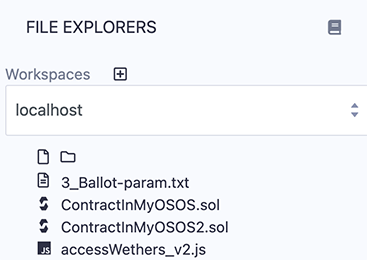
Creating & deleting folders & files
Clicking on the new folder or new file icon under localhost will create a new file or folder in the shared folder. Similarly, if you right click on a file or folder you can rename or delete the file.
Closing a remixd session
In the terminal where remixd is running, typing ctrl-c will close the session. Remix IDE will then put up a modal saying that remixd has stopped running.